
Logic & the Logic Cycle
In JasperNode you don’t write a program that runs top-to-bottom. You attach small scripts to individual tags, and the runtime runs each one only when something it depends on changes. This page explains that model, the API you write against, and the cycle that executes it.
A script belongs to one tag
Section titled “A script belongs to one tag”A tag script is a short async JavaScript function stored on a tag. The single most important rule:
A script may set only its own tag’s value — by
returning a value, or by callingself.setValue(...).
It cannot write any other tag. To influence another tag, you write your own and let that tag’s readers react. This is what keeps data flow explicit and traceable (and what lets the system test and reason about changes safely).
Reading other tags — on() and read()
Section titled “Reading other tags — on() and read()”A script reads other tags by calling two helpers in the code, each with a full tag id
(path/name) written as a plain string:
on("path/name")— returns the tag’s current value and makes it a trigger: whenever that tag changes, this script runs.read("path/name")— returns the tag’s current value as a read-only input that does not run the script.
Both return the value directly — if temp_c is a number, on("factory/line1/temp_c") is that
number.
You don’t maintain a separate list of triggers anywhere. The wiring is read straight out of your
code: every on(...) and read(...) call site is scanned when you deploy, and that scan is the
dependency graph. Change the code and the wiring follows automatically — the two can never drift out
of step.
Two consequences worth knowing:
- The path must be a plain string literal —
on("factory/line1/temp_c"), neveron(someVar)or a built-up string. A dynamic path can’t be read without running the script, so it is rejected at deploy with the offending line named. (Branches are fine: put a literal in each,cond ? on("a/b") : on("c/d").) - Draft vs deployed. As you type, the Inputs for testing panel reflects your draft code
immediately — a newly typed
on(...)shows up right away. But the Connections tab and Flow Exploration only change once you Deploy: they show the live dependency graph, not your in-progress edits.
A first example
Section titled “A first example”Here is a real script — convert a Celsius reading to Fahrenheit:
// Tag: factory/line1/temp_fconst c = on("factory/line1/temp_c"); // trigger + read: runs whenever temp_c changesreturn (c * 9) / 5 + 32;- Calling
on("factory/line1/temp_c")does two things at once: it returns the current Celsius value and wirestemp_cas a trigger, sotemp_frecomputes every timetemp_cchanges. - The
returnvalue becomesfactory/line1/temp_f’s new value.
A second example — a counter that ticks 0→15 and wraps, once per second:
// Tag: demo/counteron("__sys/host/clock/second"); // trigger only — we need the tick, not its valueif (typeof cache.count !== "number") cache.count = -1;cache.count = (cache.count + 1) & 0xf; // wrap 0–15return cache.count;- It runs once per second because the 1 Hz host clock
__sys/host/clock/secondis its only trigger. Here we callon(...)purely to subscribe — we ignore the returned value. cacheis a per-script object that persists between runs, so the count carries over.
What’s in scope
Section titled “What’s in scope”When you write a script body, these are available to you:
| Name | What it is |
|---|---|
self | your own tag — read it, and write it |
on | on("path/name") — read a tag’s value and make it a trigger |
read | read("path/name") — read a tag’s value without triggering |
script | the firing context — what triggered this run (script.caller, script.callerIs(…), …) |
fn | engine helpers (timers, file reads) |
cache | a per-script object that survives across runs (timers, counters, latches) |
console | logging that routes to the node’s log buffers |
self — your tag
Section titled “self — your tag”self.value/self.getValue()— the current value.self.setValue(v)— set your tag’s value imperatively (equivalent toreturn v).self.name,self.path— identity.self.stats—prevValue,ts,prevTs,source, …
script — what fired this run
Section titled “script — what fired this run”script.caller— the full tag id of the trigger that fired this run, or a sentinel:"run_once"(you clicked Run once),"resume"(the operator restarted the Logic Cycle), or""(never run / isolated test).script.callerIs("path/name")— true when that tag is what fired this run. Use it to branch on which input changed, e.g. handle a reset trigger differently from a normal update.script.inputs()/script.ons()/script.reads()— the values this run started with, as a list.
fn — helpers
Section titled “fn — helpers”fn.sleep(ms)—await fn.sleep(250)pauses this run (for debouncing, pulsing, sequencing).fn.timerOn(ms, valueWhenElapsed, defaultValue?)— a latching on-delay timer (PLCTON). Call it while a condition holds: it returnsdefaultValueuntil the condition has held forms, then latches and returnsvalueWhenElapsed. Not calling it on a run resets the timer. One timer per script;msandvalueWhenElapsedare fixed when the timer starts.fn.readFile(path)/fn.readFileBytes(path)— read a file from the host.
cache — state across runs
Section titled “cache — state across runs”cache is how a script remembers things: a running count, a previous edge, a timer’s bookkeeping.
It lives only in memory (attach it to nothing you need persisted across a restart).
The values are snapshotted when the run starts
Section titled “The values are snapshotted when the run starts”When a script starts, JasperNode takes one atomic snapshot of every tag it declared — its input
image, exactly like a PLC latching its inputs at the top of a scan. For the rest of that run,
on(...) and read(...) return those snapshot values, even after an await. Calling the same
on(...) twice in one run always gives the same number. If a script needs fresher values, it simply
runs again on the next trigger. This removes a whole class of races where two reads of related tags
could disagree mid-run.
Describing what a script does
Section titled “Describing what a script does”A deployed script can carry a one-line description — a plain-language caption of what it does, kept to one short sentence (120 characters maximum). It is not a comment in the code; it is a property of the script, and it is what the Flow Exploration view prints on the tag’s chip so a flow reads as an explanation rather than a bare graph.
The description is bound to the code it was written for. If you change the script and redeploy,
the old description stays but is flagged outdated — JasperNode knows the code moved on and the
sentence may no longer be true. It never silently rewrites it for you, and it never blocks a deploy.
To clear the flag, edit the text or press Auto generate.
Auto generate writes the sentence for you from the deployed code — “Recomputes when
‘factory/line1/temp_c’ changes; reads ‘factory/line1/setpoint’.” It is a local, offline summary
derived by reading your on() / read() calls; it costs nothing and does not involve the AI agent.
Anything Jasper deploys arrives already described — the agent is required to supply a description with every script it writes, so AI-authored logic is never an unlabelled box on the flow. And descriptions travel with a project backup, so a restored script keeps its caption.
What scripts cannot do (and why)
Section titled “What scripts cannot do (and why)”- Read a tag it didn’t declare with
on()orread()— callingon(...)/read(...)on a path that isn’t in the code is a script error. It guarantees the dependency graph is complete and honest, which is what makes chain-testing and AI analysis trustworthy. - Write any tag other than
self— side effects must travel through the dependency graph, not through hidden writes. - Write
selfwhen an enabled connector owns it as an input — the field is the source of truth; the write is refused. (To inject values for simulation, disable the connector first — see the simulation pattern.)
Reactive chains
Section titled “Reactive chains”Because a script writes only its own tag, behaviour propagates as an explicit chain:
factory/line1/temperature changes └─▶ temp_alarm (calls on("…/temperature")) → computes true └─▶ shutdown_request (calls on("…/temp_alarm")) → computes …Each arrow is an on() dependency. You can follow these links in both directions in the Flow
Exploration view, or on a tag’s Connections tab — pick a value and expand its upstream causes
or downstream effects.
A worked example — a 5-second high-temperature alarm
Section titled “A worked example — a 5-second high-temperature alarm”This shows fn.timerOn used as an on-delay: the alarm latches only after temperature has stayed
above 80 for 5 continuous seconds, and clears immediately when it drops.
// Tag: factory/line1/temp_alarmconst temp = on("factory/line1/temperature"); // trigger + readif (temp > 80) { // Condition holds → run the on-delay. Returns false for the first 5 s, then true. return fn.timerOn(5000, true, false);}// Condition cleared → don't call timerOn (this resets it) and report no alarm.return false;Downstream, a shutdown_request tag could call on("factory/line1/temp_alarm") and act on it — and
you could test that whole chain before deploying.
The Logic Cycle — how scripts actually run
Section titled “The Logic Cycle — how scripts actually run”Scripts execute in the Logic Cycle, JasperNode’s reactive runtime:
- Event-driven. It sleeps until a trigger value changes, wakes, runs exactly the scripts whose triggers fired, then parks again. If nothing changed, nothing runs. (A one-second safety net bounds any missed wake.) The closest PLC analogy is an interrupt/event task, not the main scan.
- Ordered by dependency distance. When a change fires several scripts, direct dependents run before indirect ones, so a chain settles in order.
- Sandboxed and watchdog-protected. Scripts run isolated from the data engine, and any single run that exceeds 30 seconds is aborted. A buggy script cannot freeze the node.
You can pause and resume all scripts with the Logic Cycle Stop/Start control in the status bar — useful while reconfiguring. Per-script run stats (run count, average run time, last error, what triggered the last run, currently running) are shown on the tag’s Scripting tab.
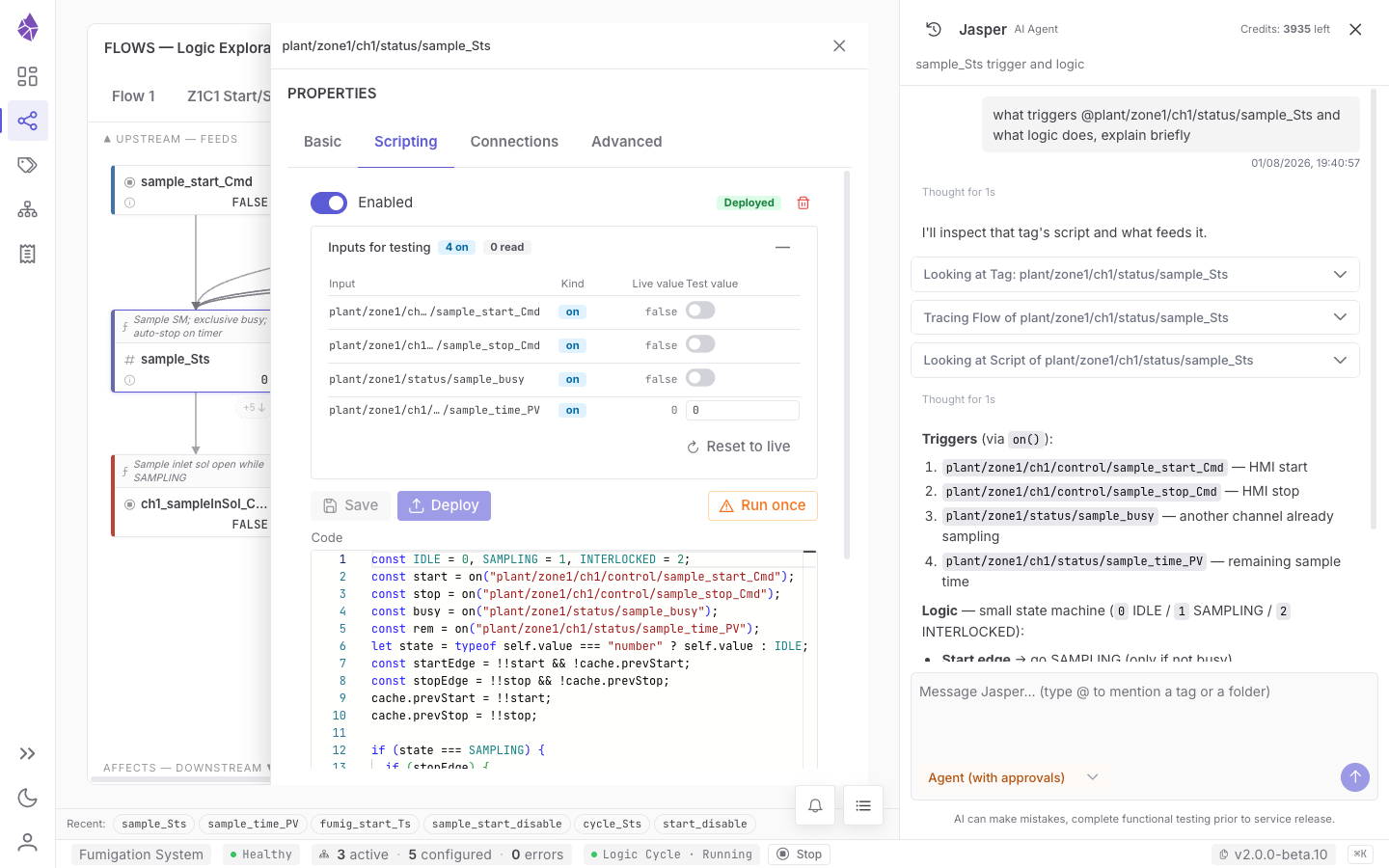
When you inherit someone else’s logic, asking Jasper is usually faster than reading it: it can list what triggers a tag and summarise what the script does with them, side by side with the code.
The Scripting tab — write, test, deploy
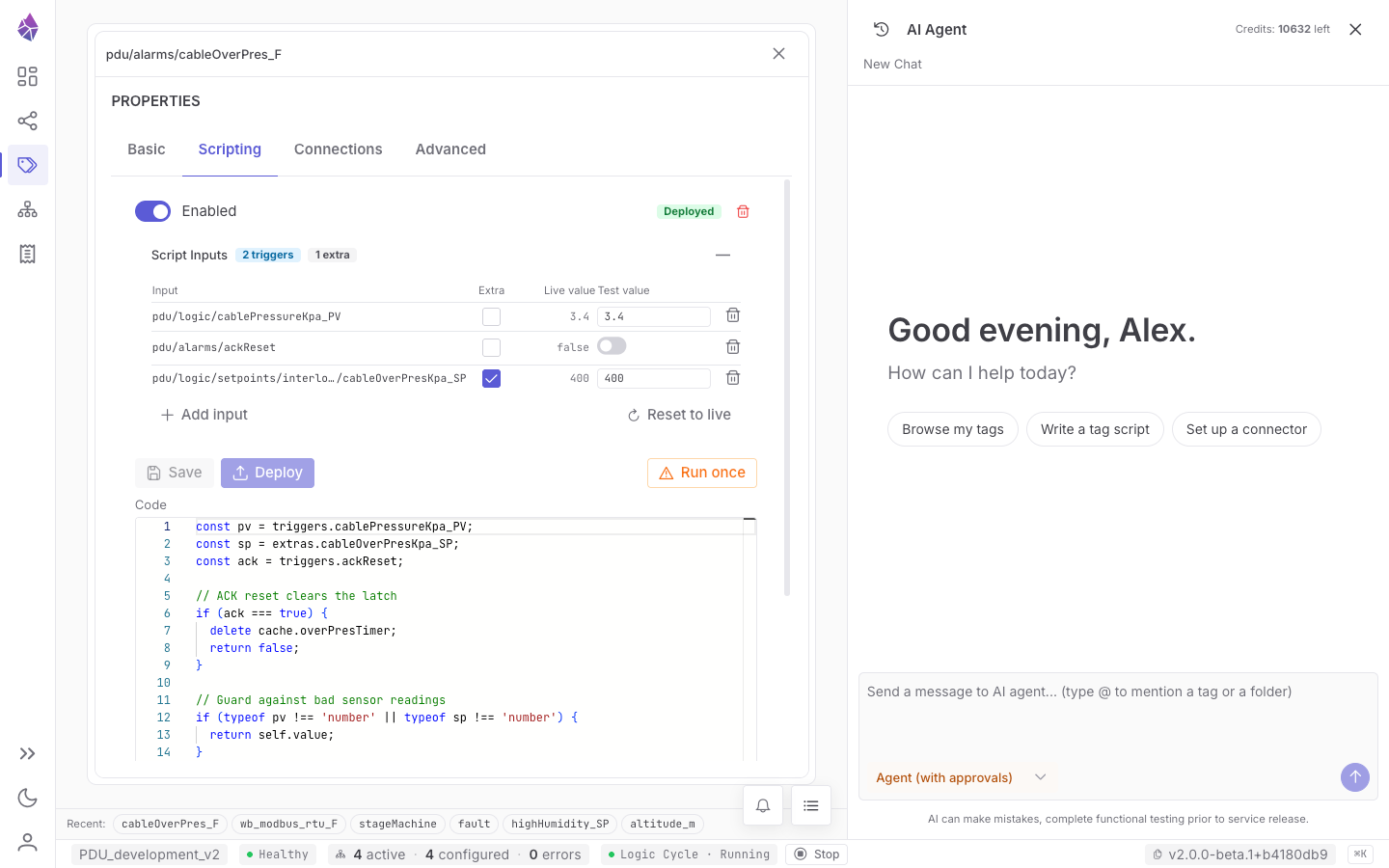
Section titled “The Scripting tab — write, test, deploy”The Scripting tab (on any user tag’s Properties panel) is where you author a script:
- The code editor. Type your logic. As you write
on("…")/read("…"), the editor autocompletes tag ids and you can drag a tag in from the tree. - Inputs for testing. A panel that lists the inputs it read out of your code — each
onandreadpath, its live value, and a synthetic Test value. It’s read-only: you add or remove an input by editingon(...)/read(...)in the code, not with buttons here. A path that doesn’t match a real tag is flagged, because a deploy would reject it. - Test. Runs the script in an isolated copy of the engine against your synthetic inputs and shows what it would return — without touching any live tag.
- Save / Deploy. Save stores your edits as a draft; the tag keeps running the live script until you Deploy, which promotes the draft atomically. Run once executes the deployed script a single time against live values.
Testing and deploying a change
Section titled “Testing and deploying a change”Editing a script saves a draft; it doesn’t go live until you Deploy. Before deploying you can Test the saved script against synthetic input values without affecting the running process. A change the AI proposes goes further: it is tested in an isolated fork of the engine, and then flips live atomically. That workflow — the Deploy Gate and the guardrails on AI edits — is in The AI agent & Deploy Gate.
Deploying or enabling a script does not run it — a script only runs when one of its on()
triggers changes, or when you click Run once to execute it a single time by hand. A consequence:
a script with no on() inputs runs only via Run once. New scripts also default to Skip if
already running, so a long run won’t pile up re-triggers behind it; you can change this per script
(on the Advanced tab), or the node-wide default under System Config → Defaults for new items.
Simulating the field
Section titled “Simulating the field”Need to drive an input tag that a connector normally owns — to test logic with no hardware attached? Disable the connector, then attach a script (or write from the UI) to the input tag; the engine accepts those writes while the connector is disabled. Re-enable the connector only after disabling the simulation script, or the two will fight over the tag. More in Connectors → Direction.