
Diagnostics & settings
This page covers the diagnostics screen and the account/settings screens reached from the account menu.
Diagnostics
Section titled “Diagnostics”Reached from the rail’s Diagnostics button. Host health cards across the top, the log below.
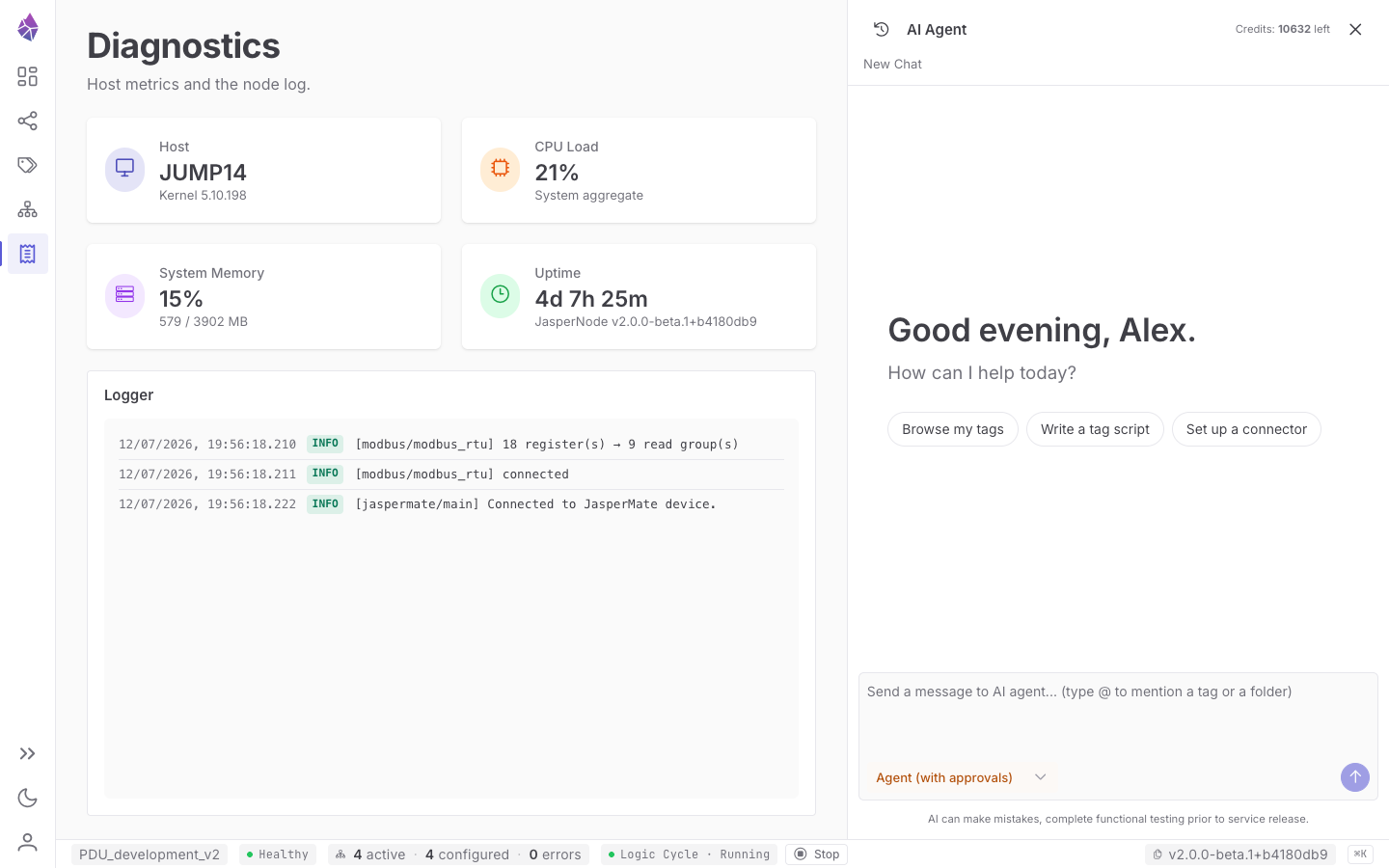
| Card | What it shows |
|---|---|
| Host | The machine’s hostname and OS version. |
| CPU Load | Aggregate CPU usage. |
| System Memory | Memory used / total. |
| Uptime | How long the node has been running, and the build version. |
The cards are fed from __sys/host/*. Below them, the Logger shows the node’s full log stream —
each line a timestamp, a level badge (INFO / WARNING / ERROR) and the message. The log
survives a restart, so the entries leading up to a crash or a reboot are still there when the
node comes back. The same log is available everywhere from the floating
Logger drawer.
System Config
Section titled “System Config”Reached from Account → System Config. A Save button applies the editable fields.
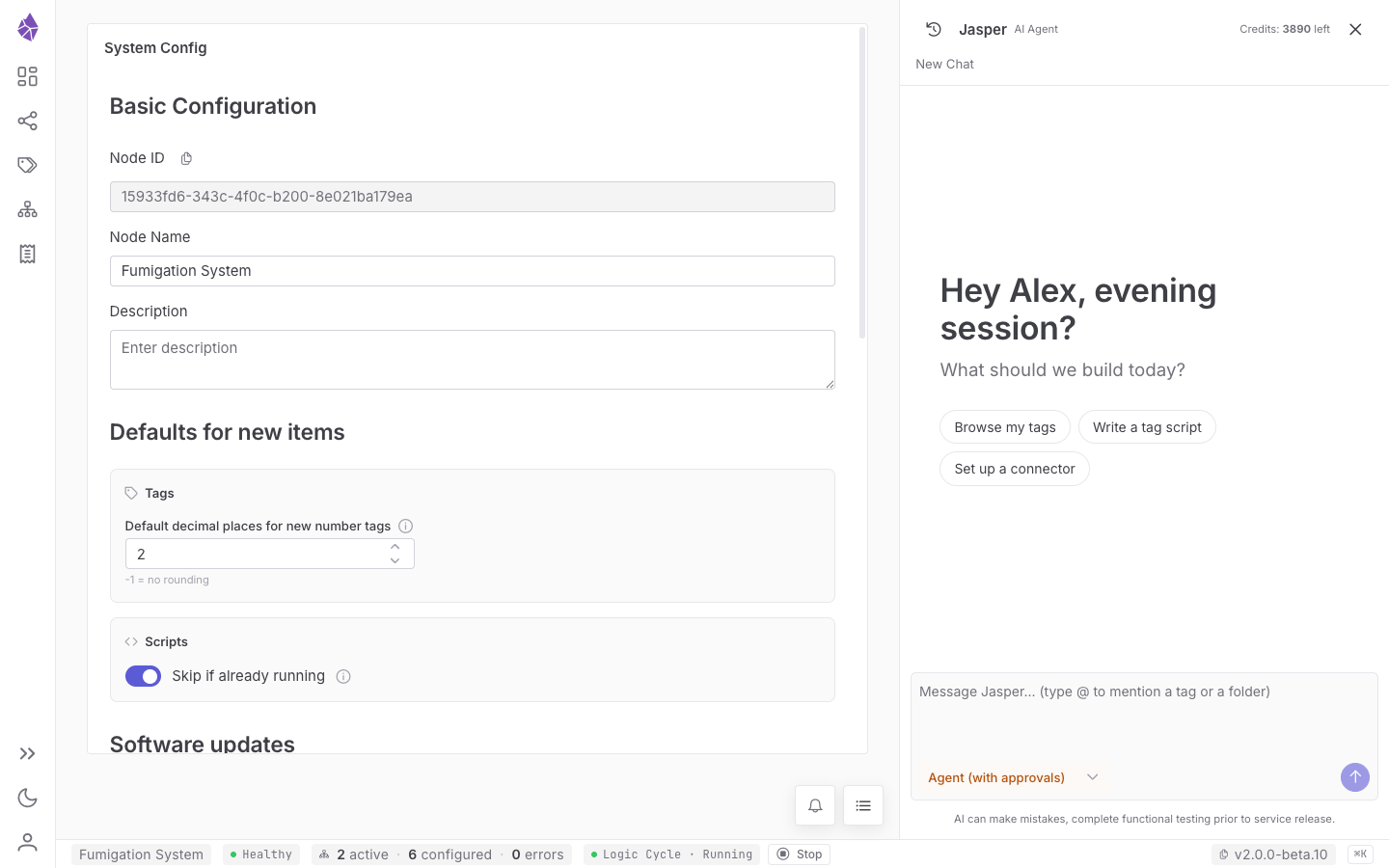
Basic Configuration
Section titled “Basic Configuration”| Field | What it is |
|---|---|
| Node ID (with copy) | The node’s stable unique identifier (read-only). |
| Node Name | A friendly name for the node (editable). |
| Description | Free-text notes about the node. |
Defaults for new items
Section titled “Defaults for new items”| Field | What it is |
|---|---|
| Default decimal places for new number tags | Rounding applied to newly created number tags (-1 = no rounding). Change a single tag’s rounding on its Advanced tab. |
| Skip if already running | The node-wide default for the per-script Skip if already running flag applied to newly created scripts. On by default; existing scripts keep their own setting. |
Software updates
Section titled “Software updates”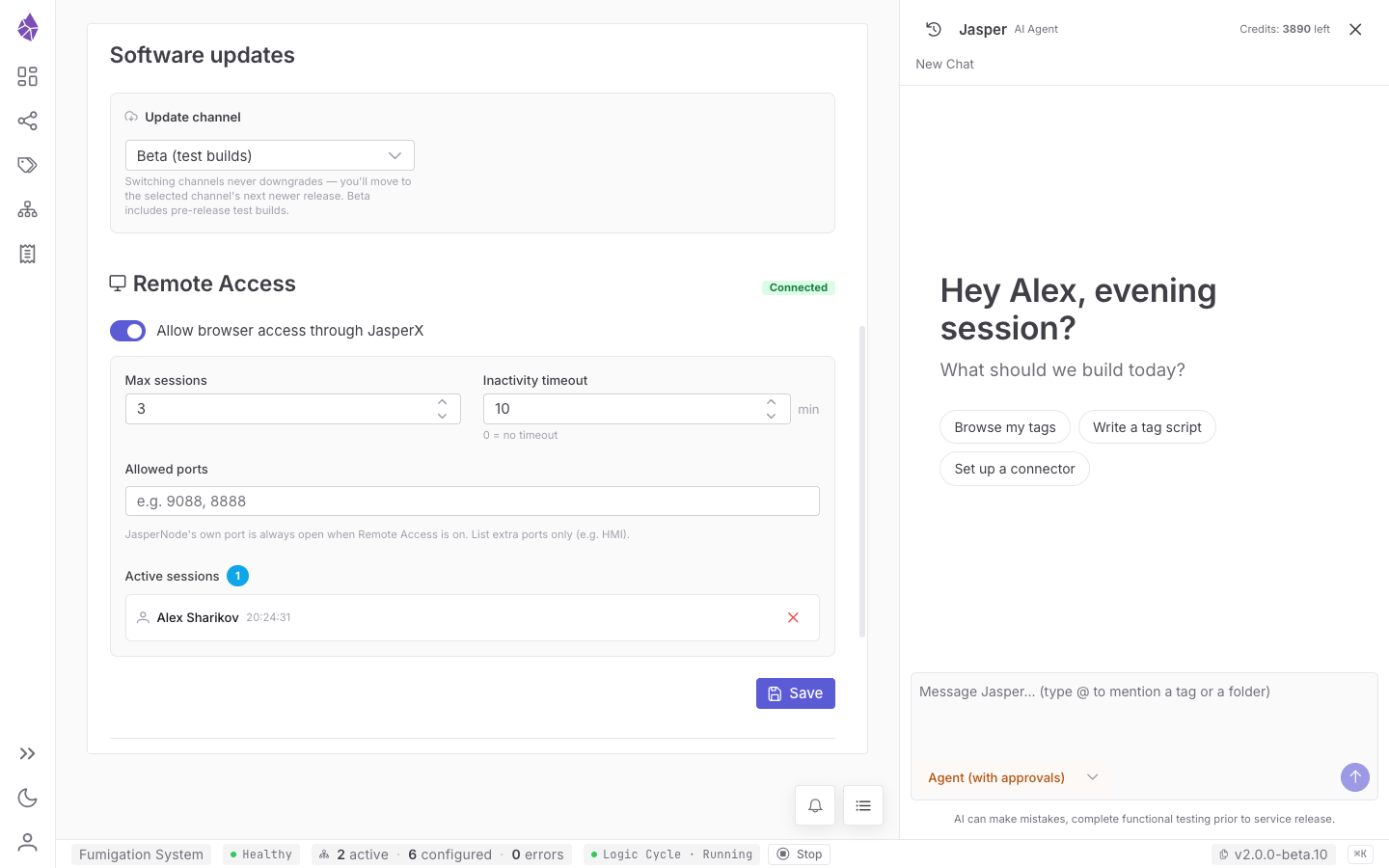
| Control | What it is |
|---|---|
| Update channel | Which release stream this node follows — Stable (production) or Beta (test builds). Save applies it; no restart is needed. |
Switching channels never downgrades a node — see Software updates for the Stable vs Beta channels and the forward-only update rule.
Remote Access
Section titled “Remote Access”Controls browser access to this node through the JasperX cloud (a Disconnected / Connected badge shows the current tunnel state).
| Control | What it is |
|---|---|
| Allow browser access through JasperX | Master toggle for remote access. |
| Max sessions | How many concurrent remote browser sessions are allowed. |
| Inactivity timeout (min) | Auto-disconnect an idle session after this many minutes (0 = never). |
| Allowed ports | Extra ports remote access may proxy (e.g. HMI). The JasperNode HTTP port is always open when Remote Access is on — you do not need to list it. |
| Active sessions | Read-only count of remote browser sessions currently connected. |
| Save | Applies the Remote Access changes. |
Danger Zone
Section titled “Danger Zone”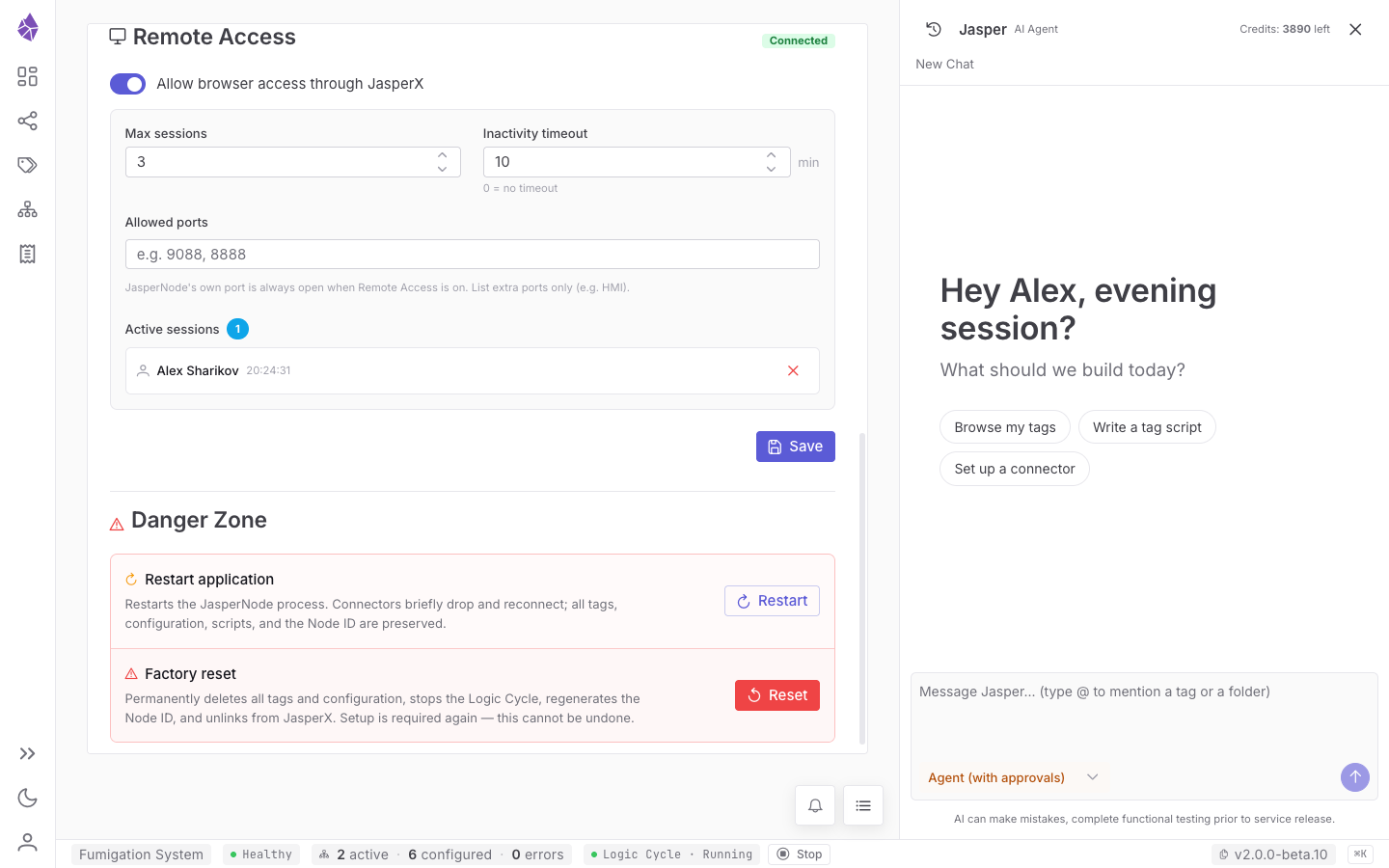
| Action | What it does |
|---|---|
| Restart application → Restart | Restarts the JasperNode process. Connectors briefly drop and reconnect; all tags, configuration, scripts and the Node ID are preserved. |
| Factory reset → Reset | Permanently deletes all tags and configuration, stops the Logic Cycle, regenerates the Node ID, and unlinks from JasperX. Setup is required again — this cannot be undone. |
Backup & Restore
Section titled “Backup & Restore”Reached from Account → Backup & Restore. A project backup captures your application — all your user tags (with their scripts and descriptions), each connector instance’s configuration, and your saved flows — so you can move a project between nodes or roll one back.
| Control | What it does |
|---|---|
| Save to File | Downloads a project backup to your workstation. |
| Restore (file) | Loads a backup file and restores it into this node. |
| Save to Cloud | Stores a backup in your JasperX account. |
| Cloud backups | A list of your cloud backups — each with a description, version, date and size — that you can Restore or Delete. |
System Updates
Section titled “System Updates”Account → System Updates opens a dialog rather than a page. It checks for a newer build and then shows one of a few states: up to date, or an available release with the version you run → the version on offer, its channel, release date and release notes, and a Download & install button. Installing shows progress, then the node restarts and the dialog offers Reload page. Which releases a node is offered depends on its update channel — see Software updates for the Stable vs Beta channels and the forward-only rule.
Report Issue
Section titled “Report Issue”Reached from Account → Report Issue. Opens the project’s issue tracker in a new tab to file a bug report.
Login & Setup
Section titled “Login & Setup”These appear before the main IDE:
- Setup — a one-time first-run step shown on a brand-new node, to establish its identity before anything can be edited.
- Login — sign-in via a single Login via JasperX button (OAuth through the JasperX cloud; there are no local accounts). The first editor to register a node becomes its owner.